 My ChaptersGet the app
Home / Help
Help and walkthroughs
Short, step-by-step guides to the parts of My Chapters people ask about most, then answers to common questions.
Jump to:Apple WatchMacCommon questions
The screenshots are from the app itself, with made-up names, stock photos and Apple’s own sample photos.
Add the widgets to your Home Screen
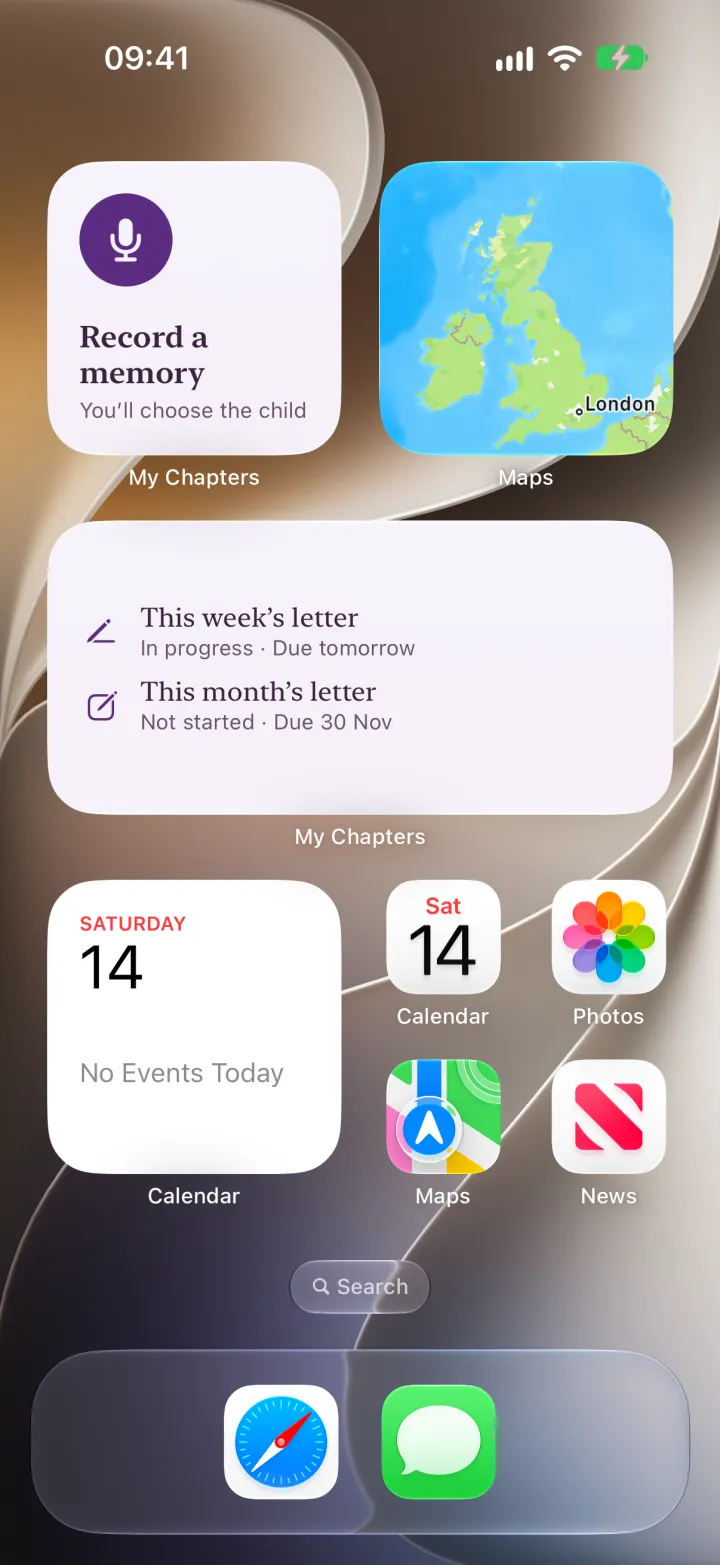
See at a glance whether a letter is waiting and when it’s due, or catch a memory in one tap.
- Open the widget galleryTouch and hold an empty part of your Home Screen until the apps jiggle. Tap Edit at the top, then Add Widget. (On older versions of iOS, tap the + button.)
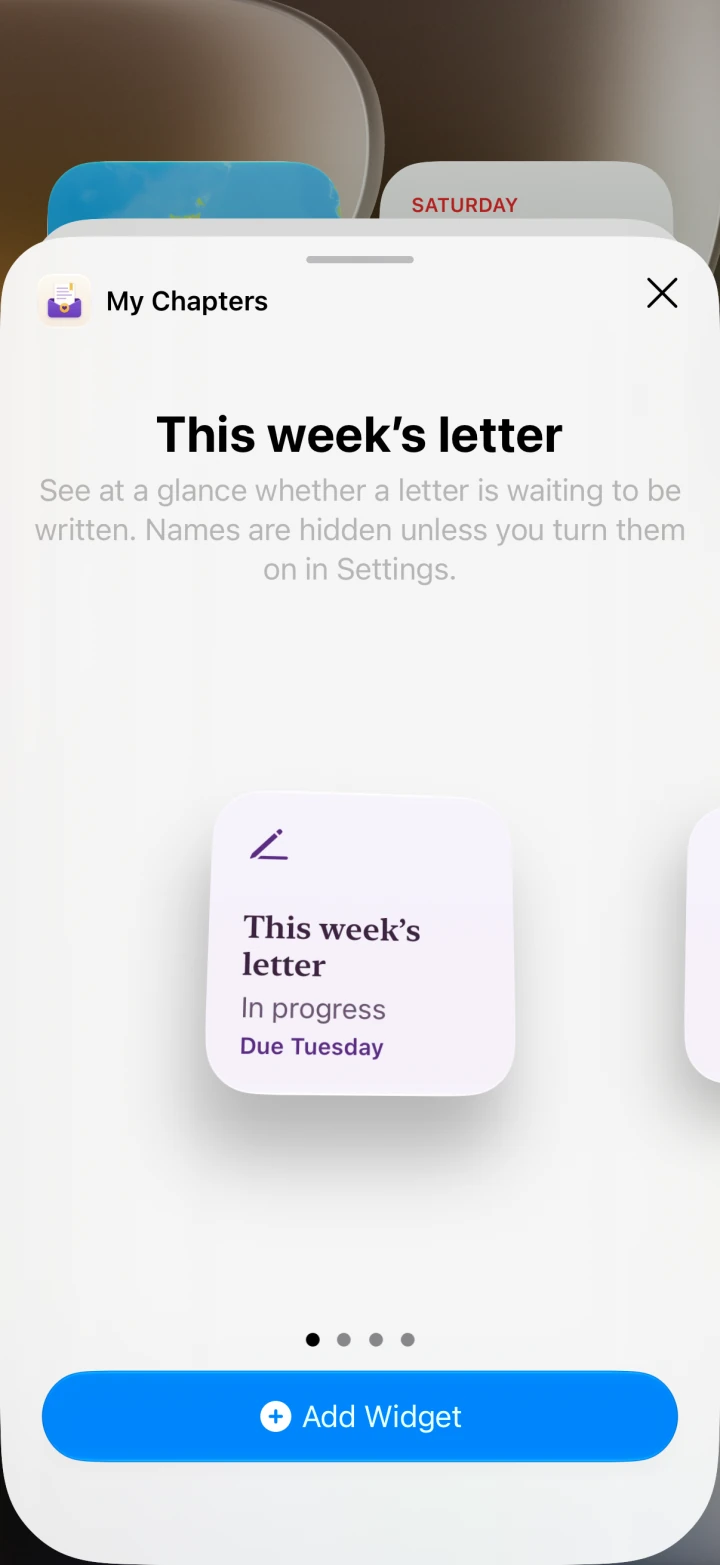
- Find My ChaptersSearch for “My Chapters” and tap it. There are two widgets. This week’s letter shows whether each letter is written and when it’s due. Add a memory lets you type or record a moment as it happens, ready for the next letter.
- Choose a size and add itSwipe to the size you like, tap Add Widget, then tap Done.
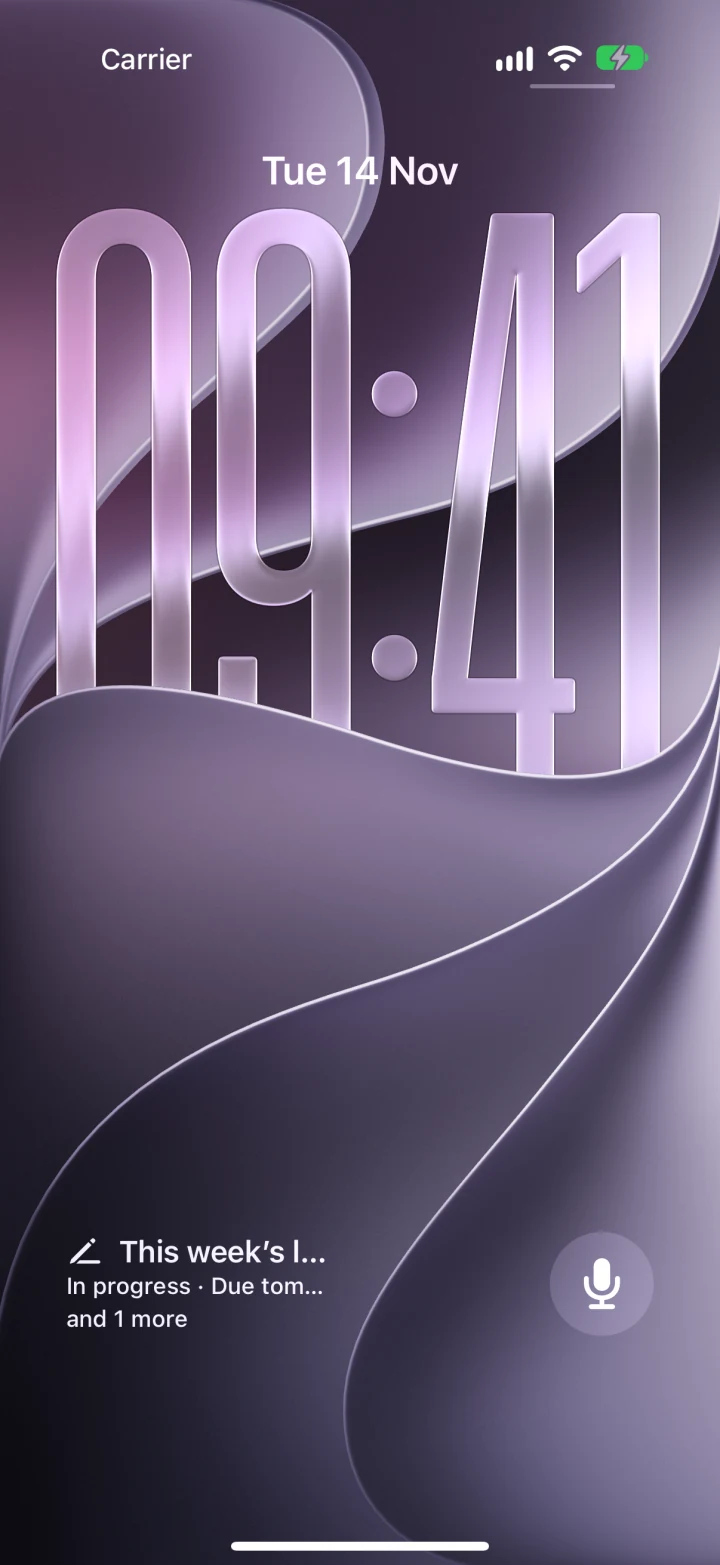
- Want them on the Lock Screen?Touch and hold your Lock Screen, tap Customise, then tap the space for widgets and choose My Chapters.
- Decide whether names showWidgets don’t name the child unless you turn on Show names on widgets, in the app’s Settings under Reminders and widgets. With it off, the memory widget shows only a first initial. If you turn it on, Lock Screen widgets still hide names until you unlock your iPhone.
Good to know. To do this, the app keeps a small status file on your iPhone, shared only with its own widgets. Nothing leaves your device.
Did this help, or does your screen look different? Email me
Write this week’s letter
From a blank page to a signed, dated letter in a few minutes.
- Start from the home screenEach child has a card showing where their letter is up to. Tap Write this week’s letter (or this month’s), or Carry on writing if you’ve begun.
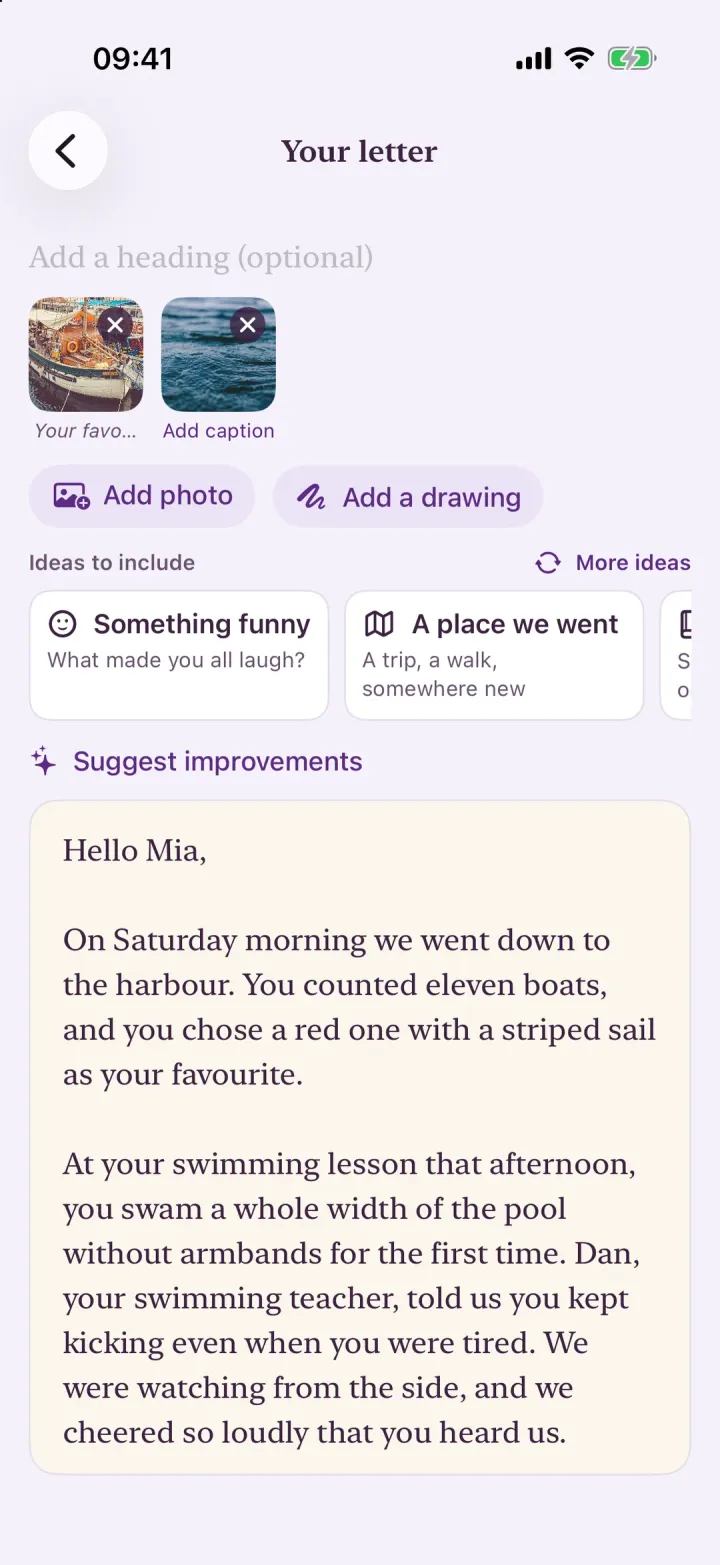
- Write in your own wordsIdeas that suit the child’s age sit beside the page if you’re stuck. They’re prompts only and never add words for you.
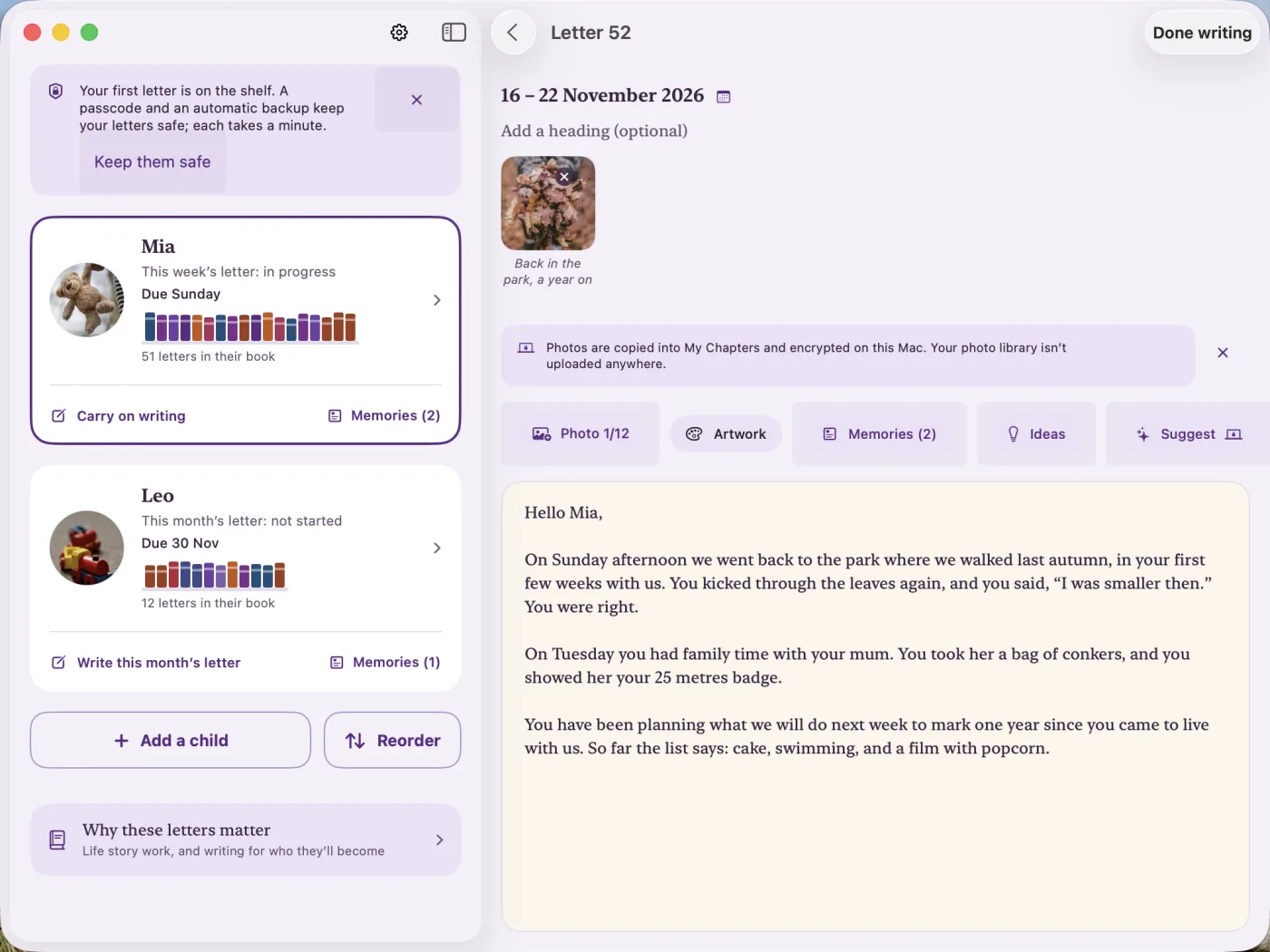
- Add photosAdd up to twelve photos, each with a caption. They’re resized and their location details are removed before they’re stored.
- Choose a designPick a design now or change it later. The letter is laid out for you, signed and dated.
Good to know. Did something happen on Tuesday that you’ll forget by Sunday? Jot it as a memory, typed or recorded, and choose which ones go into the letter when you sit down.
Did this help, or does your screen look different? Email me
Send a letter to the social worker
Two taps, from your own email account.
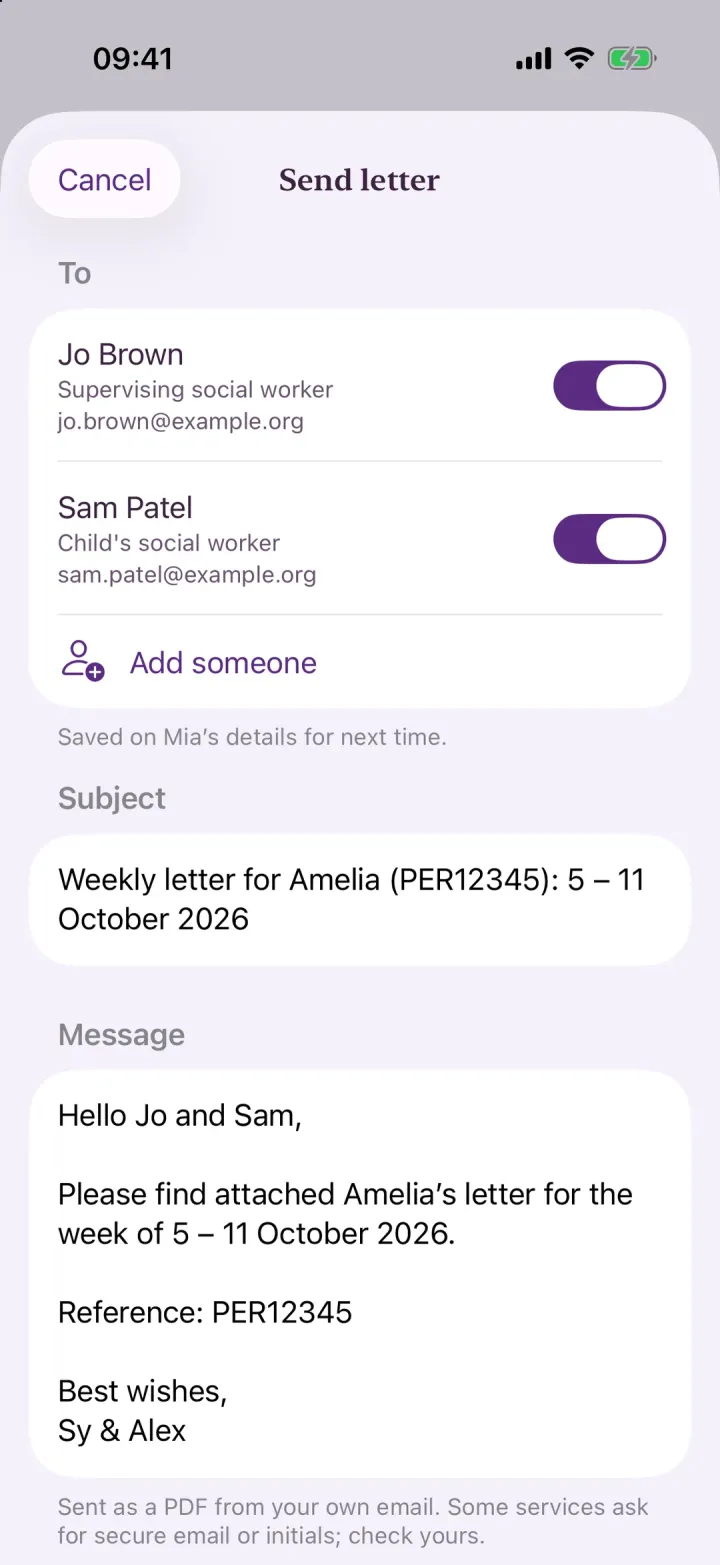
- Tap Send on the finished letterThe first time, add the people the letters go to. They’re saved on the child’s details for next time.
- Tick who it’s forSwitch each person on or off for this letter.
- Check the subjectIt says whose letter it is and which week or month it covers, with the child’s reference number if you’ve added one. You can use initials instead of a name.
- Send from your emailYour email app opens with the letter attached as a PDF. Press send there, as with any other email.
Good to know. Letters go from your own email account and never pass through My Chapters. Some services ask for secure email or initials, so check what yours expects.
Did this help, or does your screen look different? Email me
Make a book from the letters
Bind every letter, or a stretch of time, into one PDF.
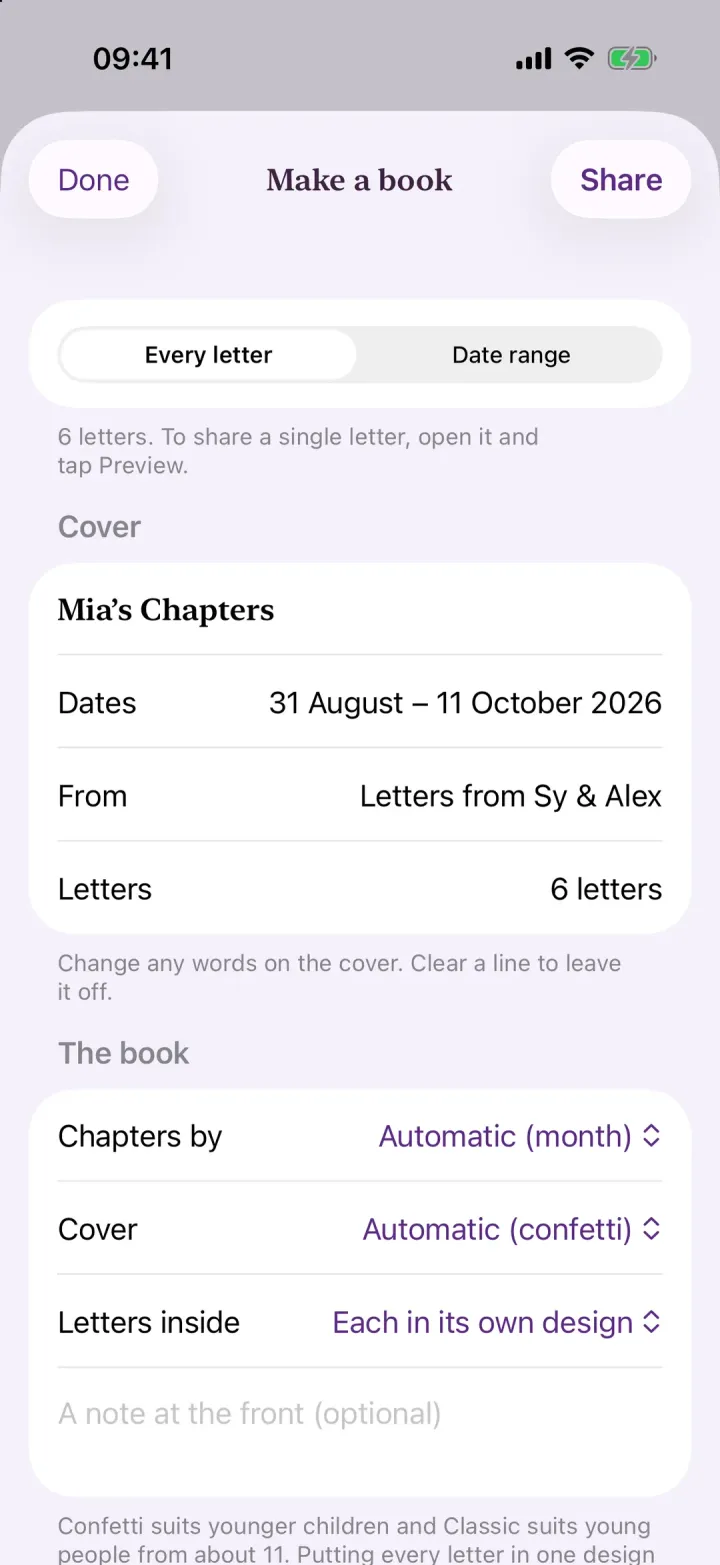
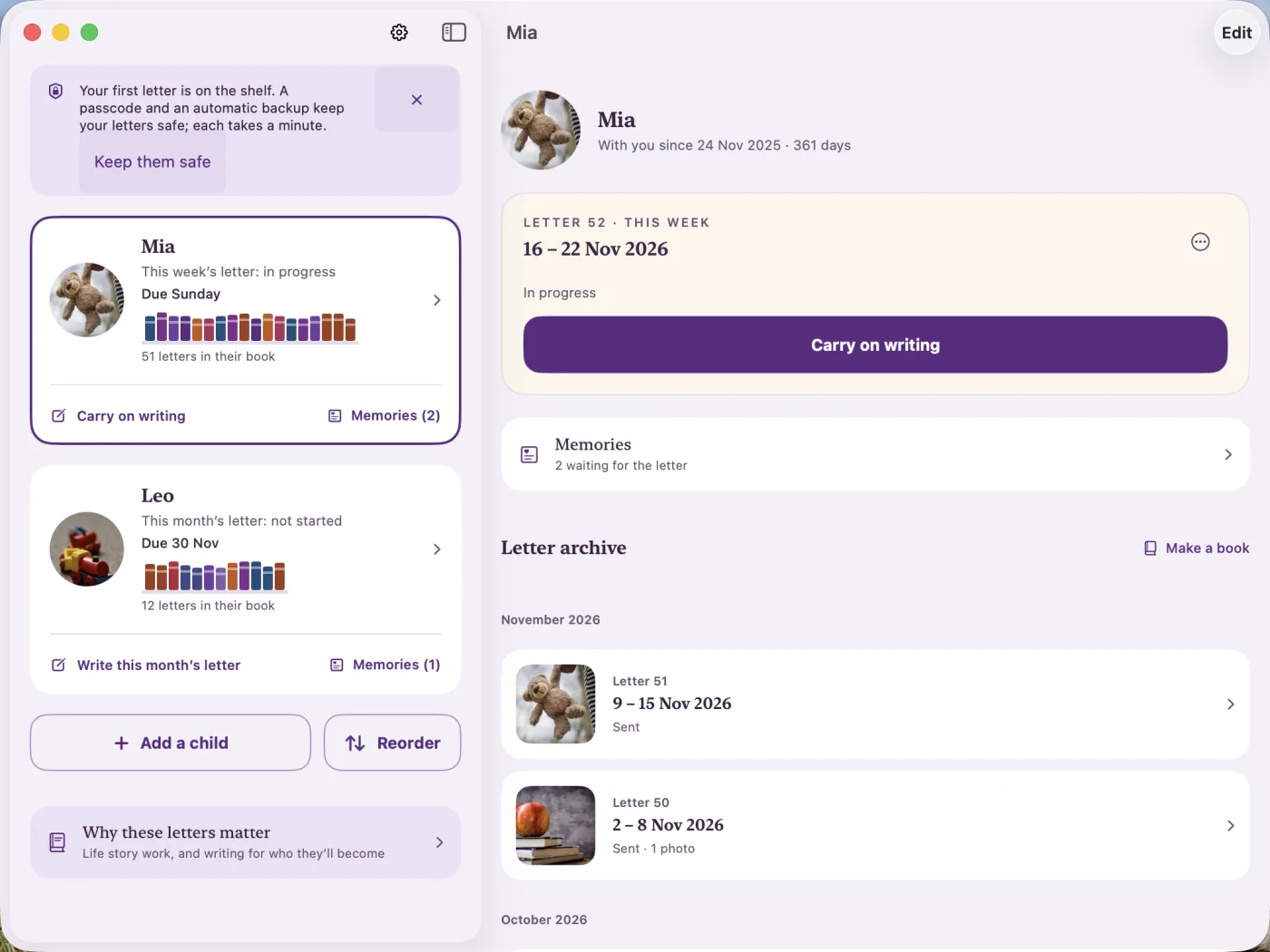
- Open the child’s pageOn the home screen, tap the child’s card. Every letter is numbered and kept there.
- Tap Make a bookIt sits beside the heading over their letters.
- Choose what goes inEvery letter, or a date range.
- Shape the cover and chaptersChange any words on the cover, and choose a cover design and whether chapters go by month, year or the child’s age. Leave them on Automatic and the app picks what suits the letters and the child’s age.
- Preview and shareTap the cover to see the whole book, then Share to save or send the PDF. It has a cover and a contents page, ready to print or keep.
Did this help, or does your screen look different? Email me
Write an ending letter
For when a child moves on, with guidance for the kind of move.
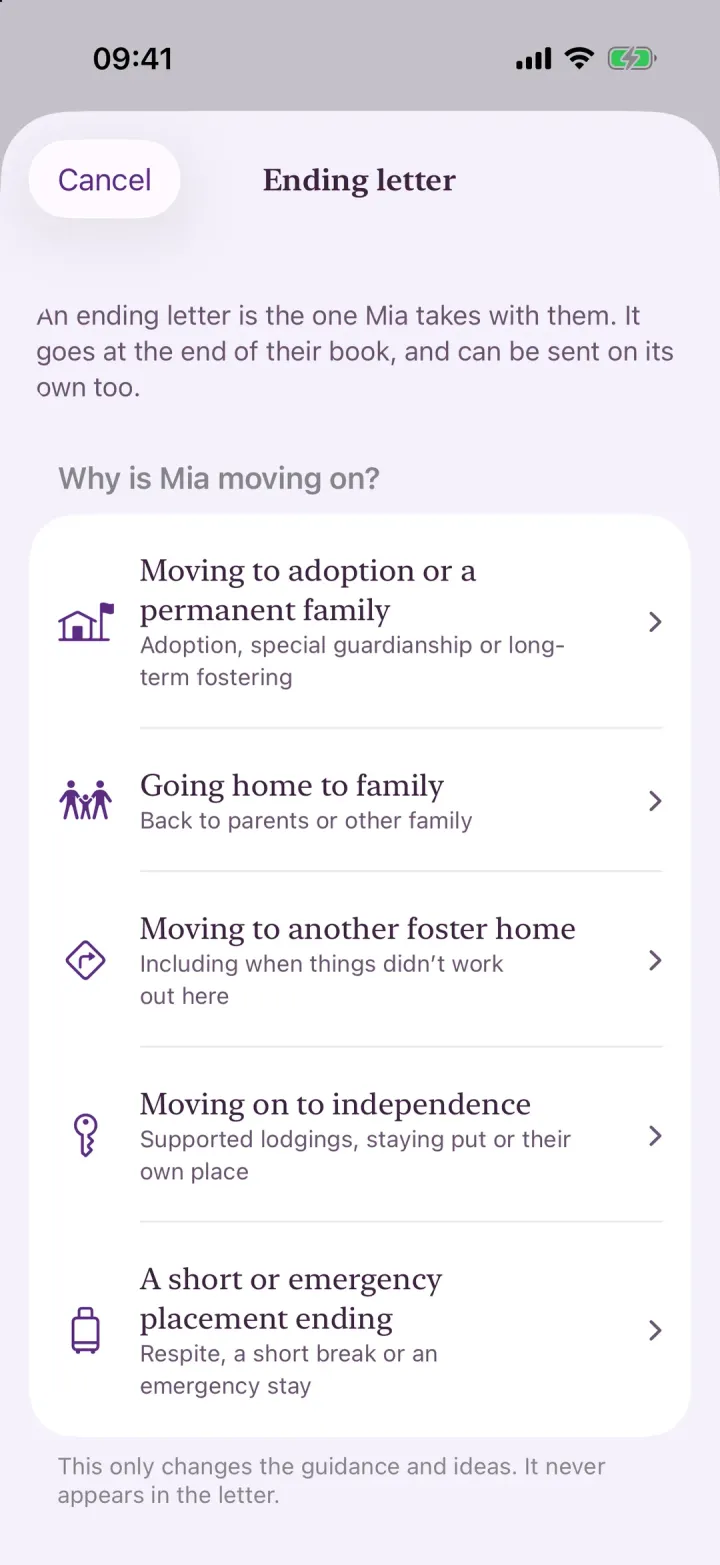
- Start an ending letterOpen the child’s page and tap Write an ending letter, under their letters. It’s also in the ••• menu on this week’s letter.
- Say why they’re moving onAdoption or a permanent family, going home, another foster home, independence, or a short or emergency stay. This only changes the guidance; it never appears in the letter.
- Write with the guidance beside youThe prompts change to suit the move. Take your time; it can stay a draft for as long as you need.
- Add letters from family and friendsOnce your ending letter is started, tap Add an ending letter from someone else on the child’s page. Give their name and how they know the child, then type their words in, or hand them your phone. Each is signed with their name and goes after yours at the end of the book. It all stays in the app.
Good to know. There’s also a guide on writing an ending letter on this site, and help in the app on what to keep for a child’s life story.
Did this help, or does your screen look different? Email me
Share photos from the Photos app
Send photos to a letter without opening My Chapters first.
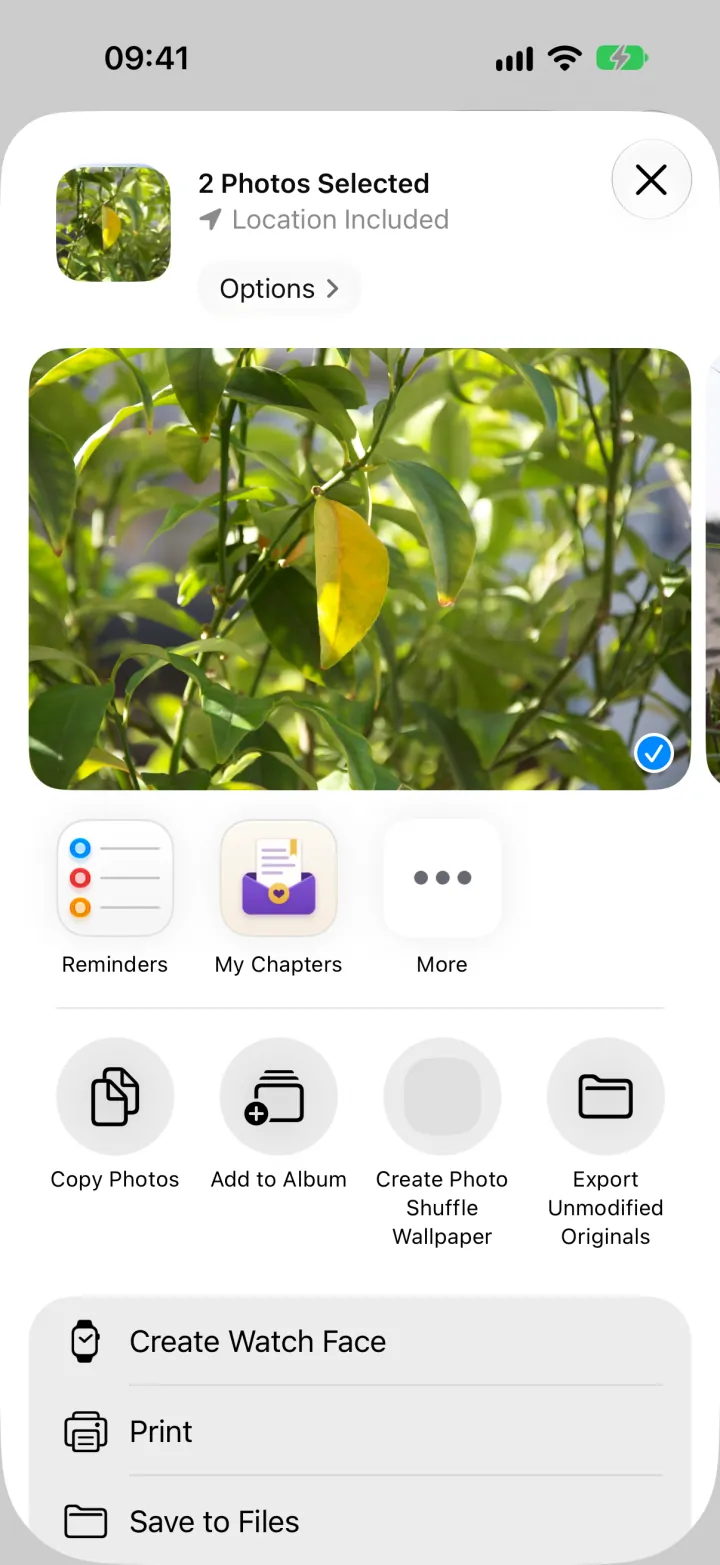
- Select photosIn the Photos app, choose the photos you want.
- Share to My ChaptersTap the share button and choose My Chapters from the row of apps. If it isn’t there, tap More at the end of the row.
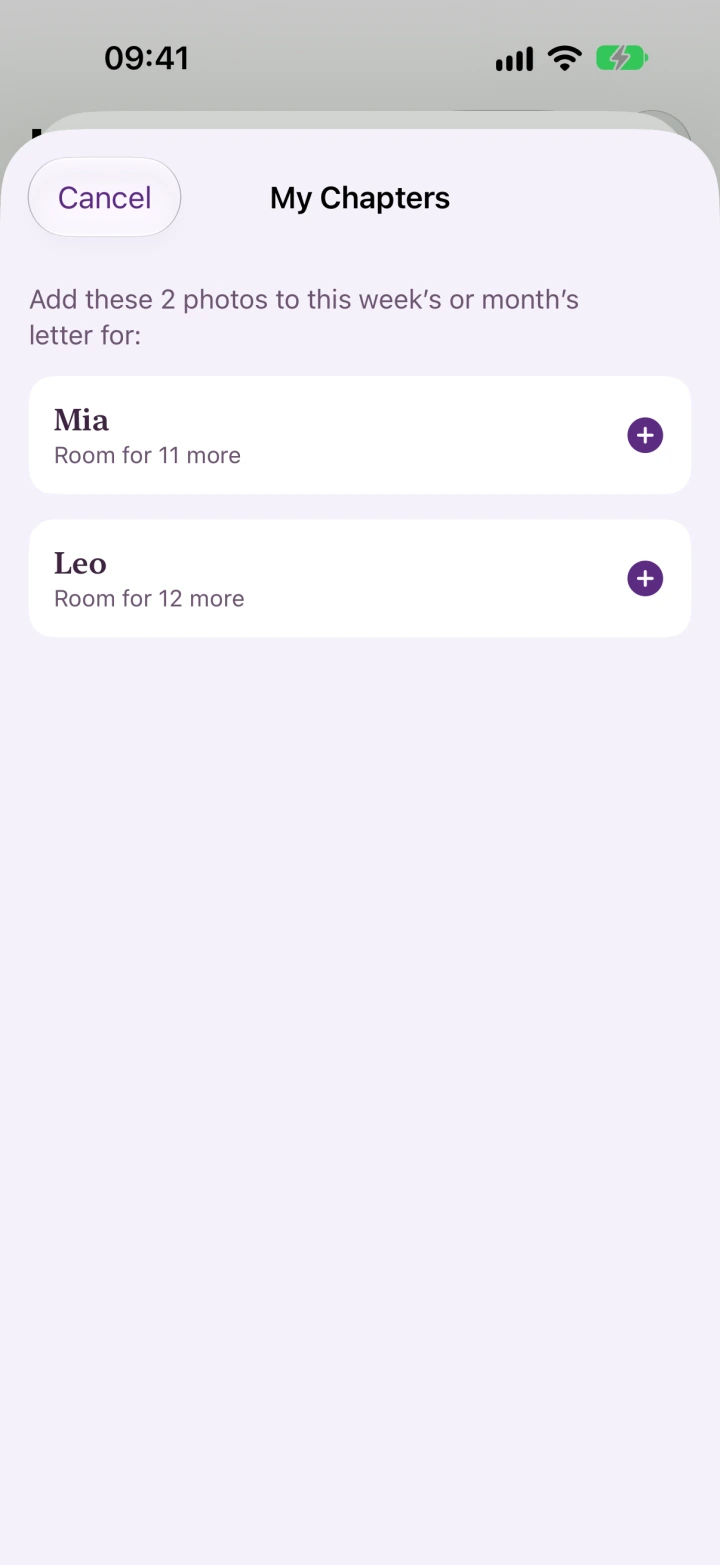
- Pick whose letterTap the child. The photos join their letter for this week or month, and the app shows how many more there’s room for.
- Open the appThe photos wait on your iPhone until you next open My Chapters, which files them in the letter, resized and encrypted. The waiting copies are then deleted.
Did this help, or does your screen look different? Email me
Write with your partner
You both write the same letters, each on your own iPhone or iPad.
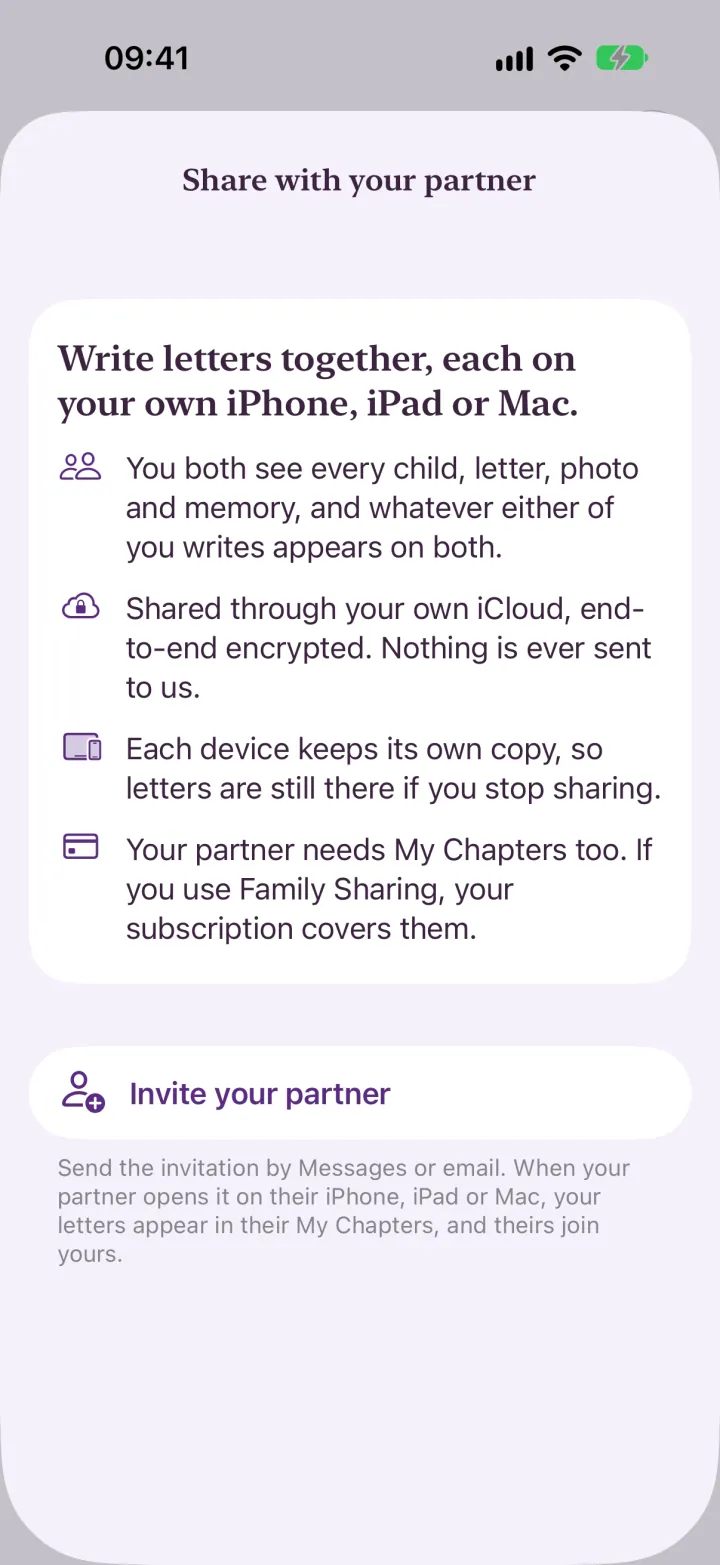
- Know what it doesSharing is off unless you turn it on. When it’s on, you both see every child, letter, photo and memory, and whatever either of you writes appears on both.
- Invite your partnerTap the settings button on the home screen, then Share with your partner, then Invite your partner. Send the invitation by Messages or email.
- Your partner opens itThey need My Chapters on their own iPhone or iPad, signed in to iCloud. When they open the invitation, your letters appear in their app, and anything they’d already written joins yours.
- PayingYour partner needs My Chapters too. If you use Family Sharing, your subscription covers them.
- StoppingTap Stop sharing on the same screen. The shared copy is deleted from your iCloud, and each device keeps the letters it already has.
Good to know. It goes through your own iCloud, with the words end-to-end encrypted and photos and recordings encrypted before they leave your iPhone. Nothing is sent to me.
Did this help, or does your screen look different? Email me
Back up your letters
So a lost or broken phone doesn’t lose the lot.
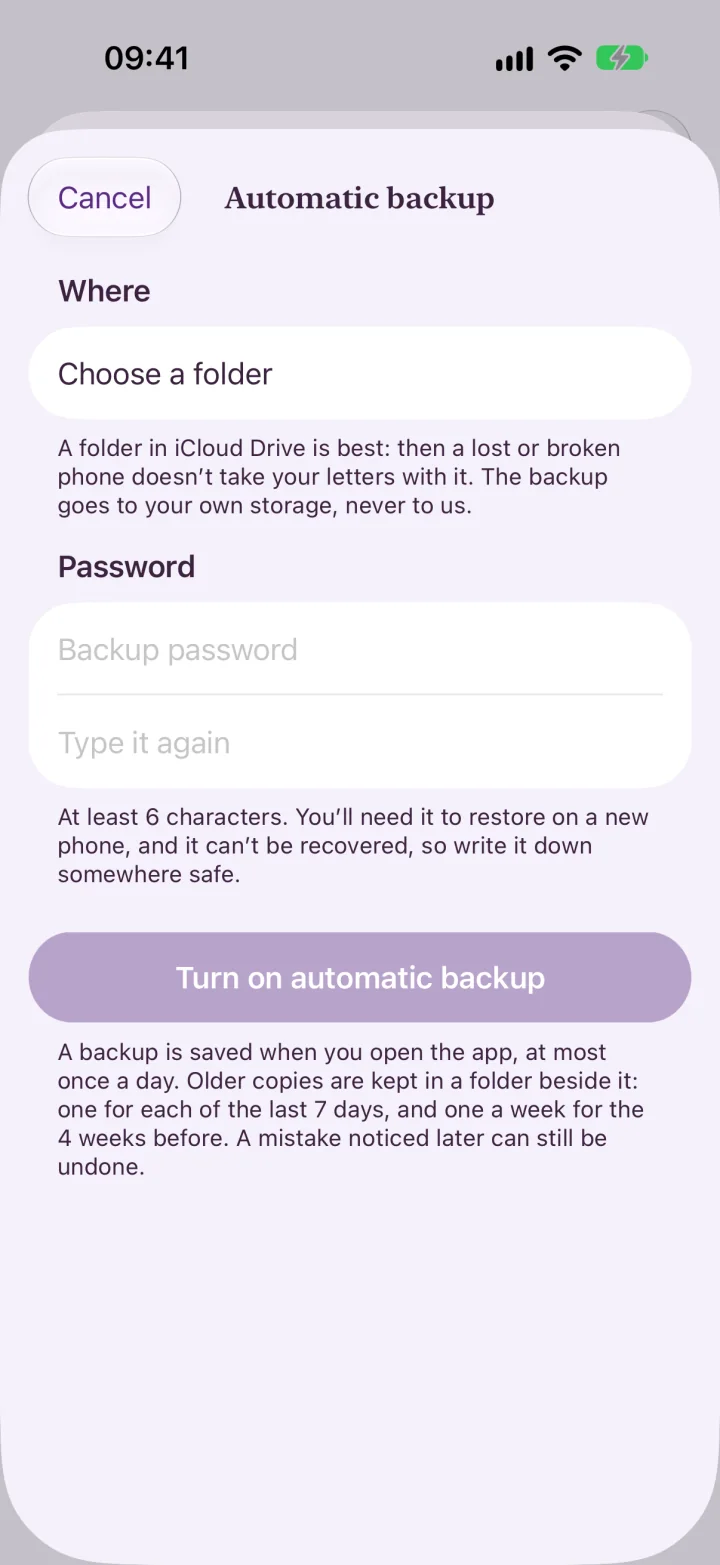
- Open BackupTap the settings button on the home screen, then Backup, then Turn on automatic backup.
- Choose a folderA folder in iCloud Drive is best, so a lost or broken phone doesn’t take your letters with it. The backup goes to your own storage, never to me.
- Choose a passwordAt least 6 characters. You’ll need it to restore on a new phone. It can’t be recovered, so write it down somewhere safe.
- Let it runA backup is saved when you open the app, at most once a day. Older copies are kept beside it: one for each of the last 7 days, and one a week for the 4 weeks before.
- On a new phoneRestoring from your iPhone’s own iCloud or computer backup brings your letters across. Otherwise, in Backup, tap Restore from a backup and choose your file.
Good to know. You can also make a single backup file at any time with Make a backup file now. Backup files stay where you saved them even if you delete the app, so delete those too if you want everything gone.
Did this help, or does your screen look different? Email me
Record a child’s background and see the dates that may matter
Optional, and only what you’ve been told. Nothing is ever guessed.
- Open Edit detailsOn the child’s page, tap Edit, then Identity, culture & background.
- Add only what you knowPick as many faiths, heritages or Indigenous communities as are right, or choose Not known, Prefer not to record or No religious affiliation. Add languages, places and family traditions in your own words, and where you were told. Please don’t work anything out from a name, how someone looks or where they were born.
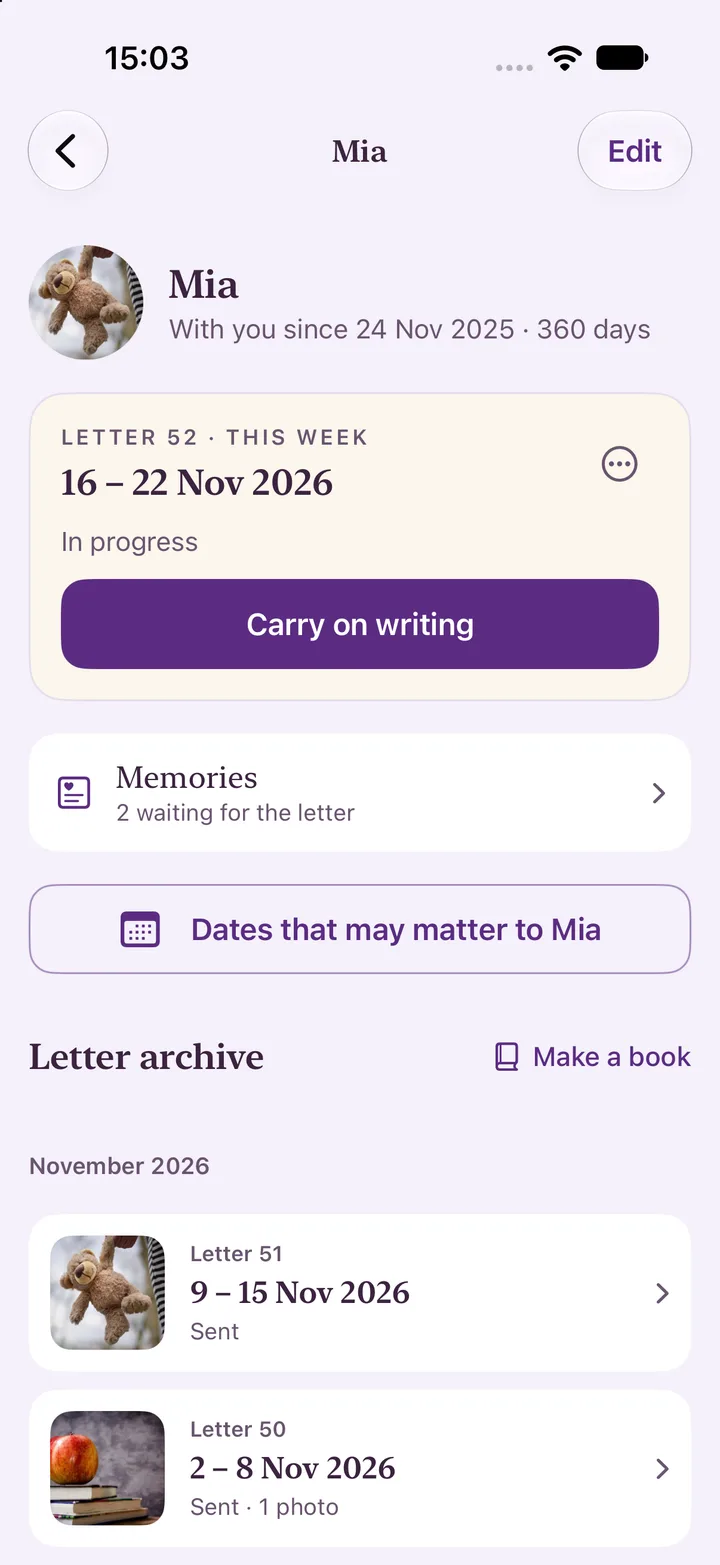
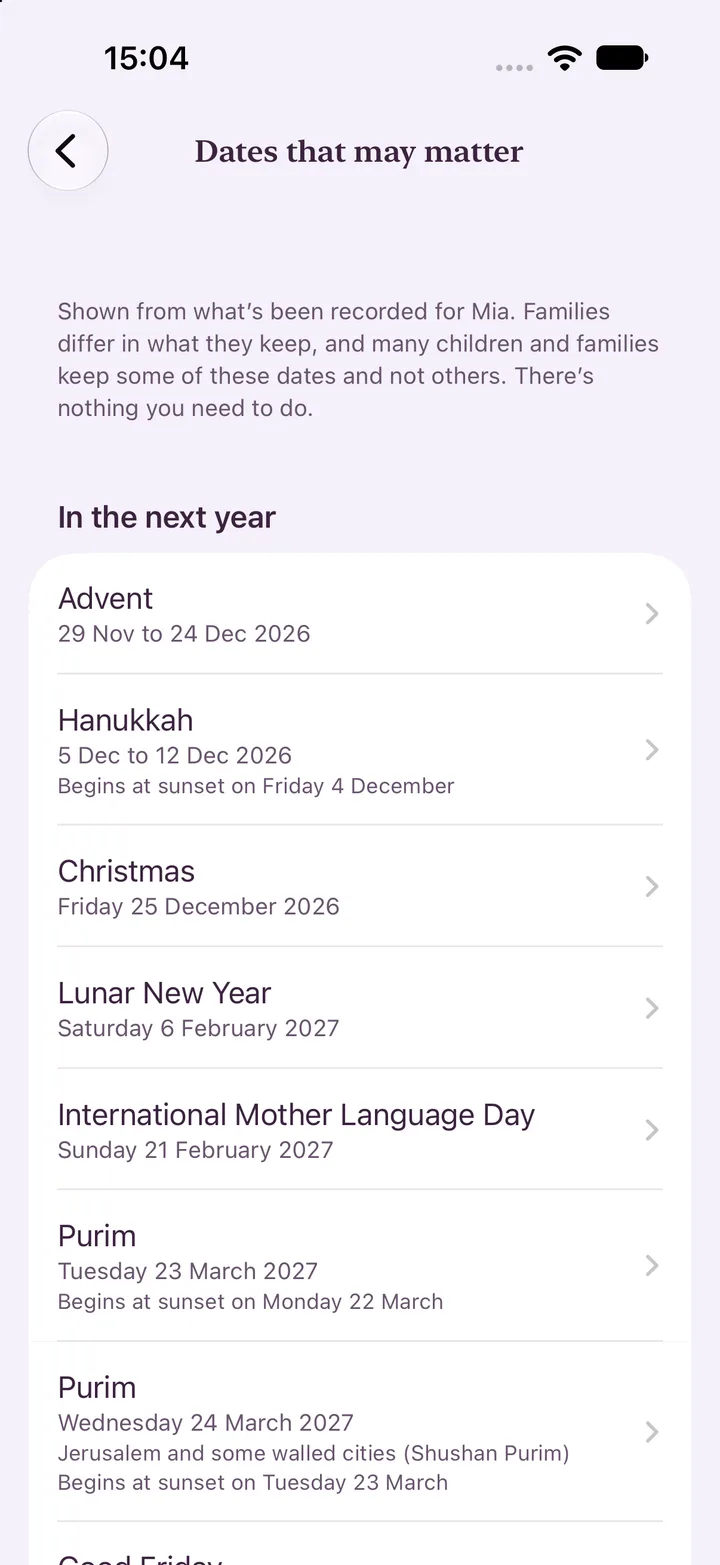
- Open the datesOnce something with dates is recorded, a button on the child’s page says Dates that may matter to them. It lists the next year’s dates, and shows each community’s date where they differ, such as Orthodox and Western Easter.
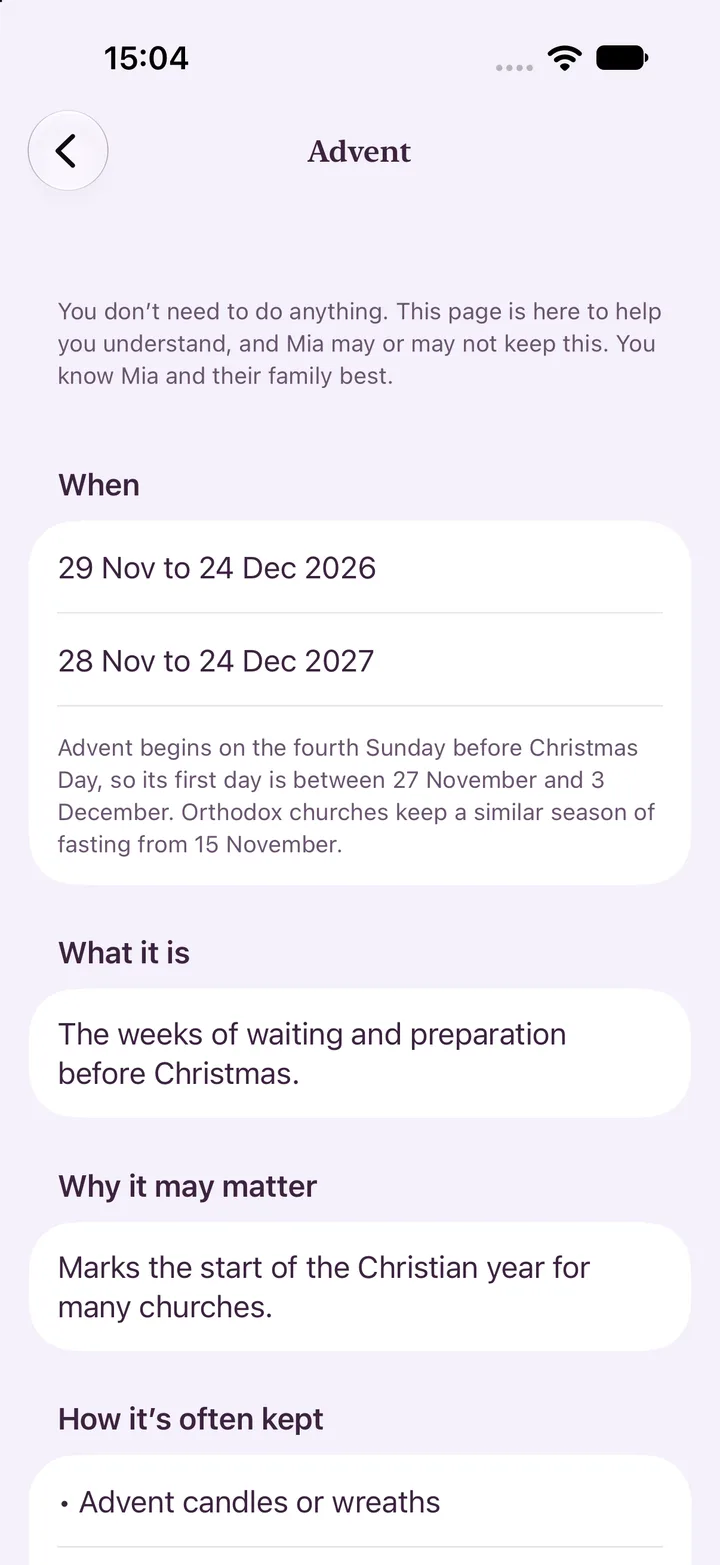
- Read a dateTap a date for what it is, why it may matter, how it’s often kept and what to take care with, plus questions you could ask their social worker or family. There’s nothing you need to do.
- Browse, or suggest a changeSettings, then Help, then Cultural and religious dates lists every tradition. If something’s missing or wrong, tap Suggest an addition or amendment. It opens an email to me with a template, and nothing about a child is added to it.
Good to know. It stays on your device with the child’s other details, and reaches your partner’s phone only if you share. Nothing is sent to me. Each page says whether it has been checked by someone who knows the tradition well.
Did this help, or does your screen look different? Email me
Get a quiet reminder of dates that may matter
Off until you turn it on, and it never names the child.
- Open the settingsTap the settings button on the home screen, then Reminders and widgets, then look for Cultural and religious dates.
- Turn on remindersChoose four weeks before, a week before, on the day, or afterwards. Afterwards is a gentle nudge to jot a memory if anything is worth keeping. There’s no need if not.
- Choose what showsReminders never name the child. They don’t name the date either unless you turn on Say which date in the reminder, because that could show on your lock screen.
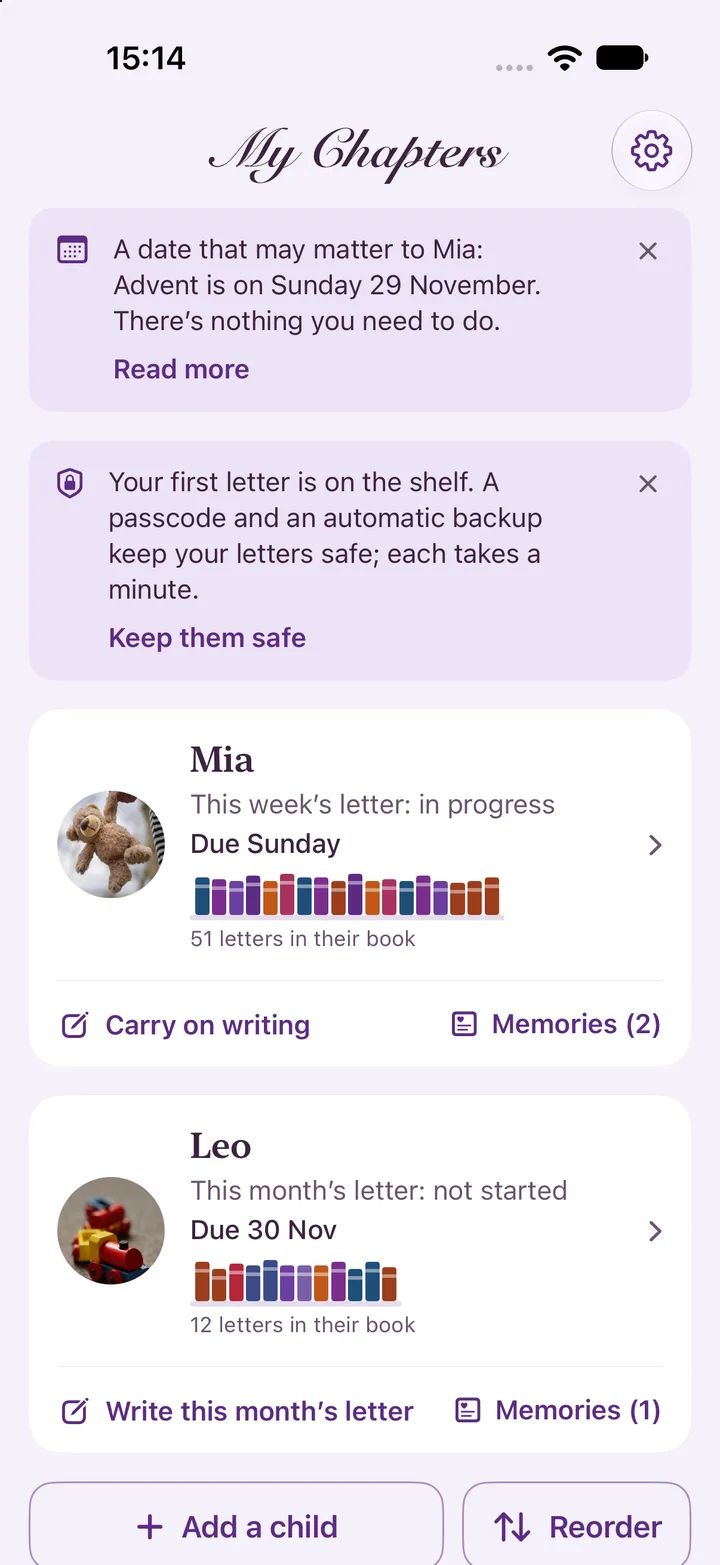
- Home and the letter pageThe nearest date appears as one card on Home. When a date is near a letter, a note you can close offers an optional thought. You can turn either off in the same place.
Good to know. Reminders are planned on your phone, and only for dates that match what you’ve recorded about a child. Nothing is sent from a server, and nothing here suggests anyone should celebrate or take part.
Did this help, or does your screen look different? Email me
Edit a photo in a letter
Show the whole photo, zoom in, rotate, or give it a page of its own.
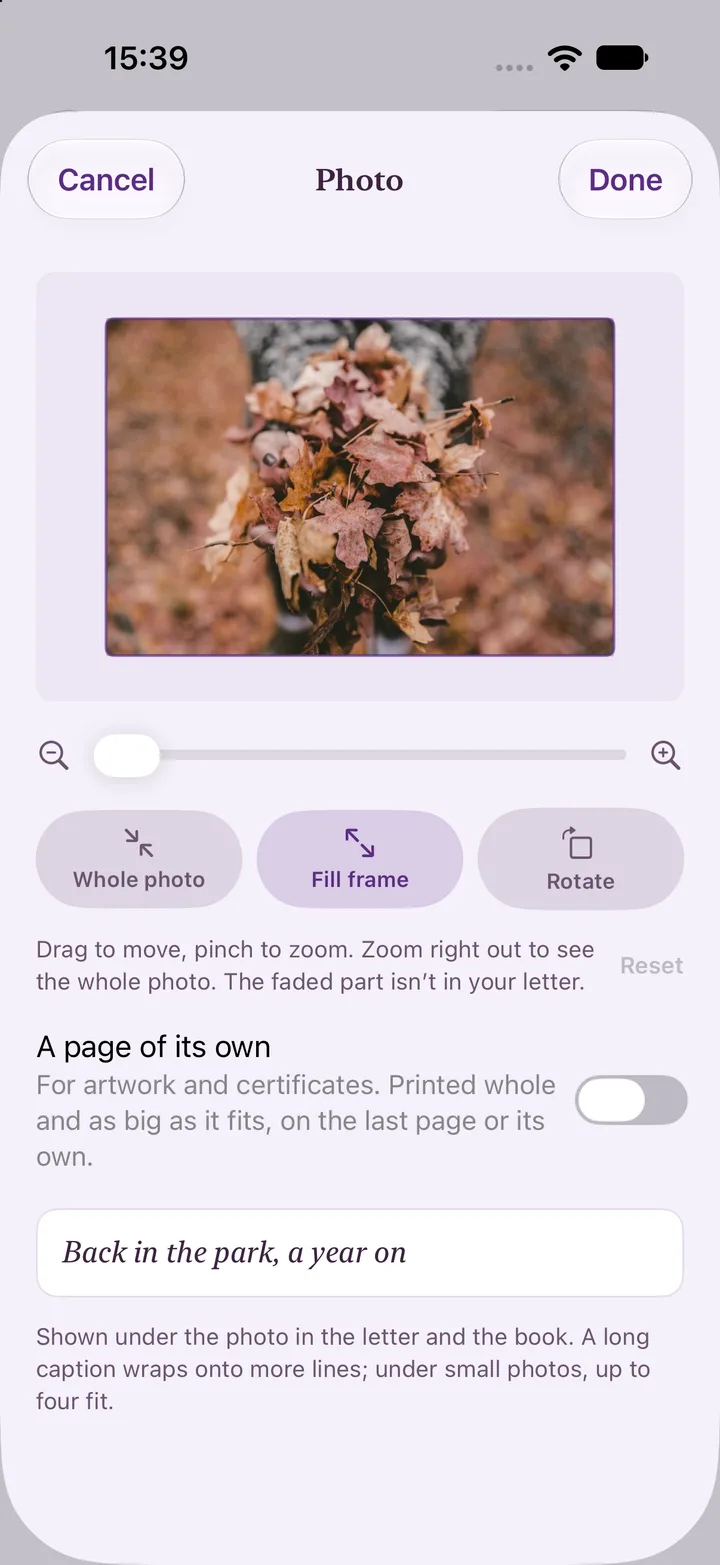
- Tap the photoIn the letter, tap the photo you want to change.
- Zoom and moveDrag to move and pinch to zoom. Zoom right out, or tap Whole photo, to show all of it. The faded part isn’t in your letter.
- Choose what’s round itWhen the whole photo doesn’t fill its frame, choose a soft blur of the photo, plain white, or the letter’s own page colour. Tap Rotate to turn it a quarter turn.
- Give it a page of its ownFor artwork, certificates and cards, switch on A page of its own. It’s printed whole, as large as it fits.
Good to know. On the Design page, Make photos bigger to fill space lets photos grow into any empty room at the end of a letter, without adding a page.
Did this help, or does your screen look different? Email me
Add a child’s artwork or a certificate
Scan it, or choose a photo of it, and it gets a page of its own.
- Tap Add artworkIt’s in the row of tools on the writing screen, beside Photo and Memories.
- Scan or chooseScan with the camera, which finds the edges, straightens the page and evens out the light, or choose a photo from Photos. If the photo shows a sheet of paper, it’s squared up like a scan.
- It gets a page of its ownEach piece is printed whole on a white mount with its caption underneath, after your words. Tap Rotate if a picture is wide.
Good to know. The camera is used only when you tap Scan with the camera. The scan is stored encrypted on your phone, is never sent to me, and only leaves your phone if you share with your partner.
Did this help, or does your screen look different? Email me
Let the child add their own words
Hand over your phone, and they add something of their own.
- Tap their wordsOn the writing screen, tap the child’s name followed by “words”, in the row of tools.
- Pass the phone overThey can type, or tap the microphone on the keyboard to say it instead.
- It’s printed after yoursTheir words are printed after your sign-off, signed with their name. They’re optional, and you can take them out.
Did this help, or does your screen look different? Email me
Record a memory on your Apple Watch
Say what happened as it happens, from your wrist, and it’s waiting on your iPhone when you write.
- Install the watch appOn your iPhone, open the Watch app, find My Chapters and turn on Show App on Apple Watch. It needs My Chapters on your iPhone, with your subscription.
- Open My Chapters on your watchIf you look after more than one child, pick whose memory it is, or choose Later and the iPhone asks you. Children show as initials unless you’ve turned on Show names on widgets.
- Tap RecordAllow the microphone the first time you’re asked. Say a few words, then tap to stop.
- Let it reach your iPhoneThe recording travels from your watch to your iPhone only, then My Chapters files it as one of your memories. Open the app on your iPhone to see it.
- Use it when you writeWhen you sit down to write the letter, choose which memories go in, as you do with any other.
Good to know. The watch keeps a recording only until your iPhone has filed it, then deletes it, or after 30 days if your iPhone never takes it. Nothing is sent to me.
Did this help, or does your screen look different? Email me
Use My Chapters on your Mac
The same app, on a bigger screen, with the same subscription.
- Get it from the Mac App StoreSearch for My Chapters: Letters and download it, signed in with the same Apple Account you subscribe with. The same subscription covers it.
- Write as you do on your iPhoneChildren, letters, photos, designs and books all work the same way, with more room to type.
- Your letters stay on that MacEverything is stored encrypted on the device you write on. To move letters between devices, make a backup on one and restore it on the other, or share with your partner.
- Send and shareLetters go to the social worker as a PDF from your own email account, just as on the iPhone.
Good to know. The widgets and sharing from the Photos app are iPhone and iPad features, so they’re not part of the Mac app.
Did this help, or does your screen look different? Email me
Write a letter for a week you missed
So a gap in the weeks can be filled in, and the numbers stay in date order.
- Open the child’s pageOn a letter card, tap the ••• menu.
- Choose Write for an earlier weekIt lists the weeks (or months) since the child came to you that don’t have a letter.
- Or move a letterOn any letter, tap its dates, or Change the week in its options, to move it to a week that doesn’t have one. Its words, photos and design stay as they are.
Did this help, or does your screen look different? Email me
Common questions
Getting started
When is My Chapters available?
It’s on the App Store now for iPhone and iPad. It also runs on the Mac, with a companion app for Apple Watch, and an Android version is on the way.
I took part in the test version. How do I get my free year?
Thank you for testing. The test is over, so install My Chapters from the App Store: it replaces the test version on your phone, with your letters still there. Then email hello@mychapters.co.uk and I’ll send your code for a full year of My Chapters free.
Do I need an account?
No. There’s no account and no sign-up. Everything you write stays on your device.
Does it work on iPad?
Yes. On iPad your children sit beside their letters, with more room to write, and you can add a handwritten page or a child’s drawing if you turn it on in Settings.
How much does it cost, and how do I cancel?
Free for the first month, then £3.99 a month or £34.99 a year. Cancel in your App Store subscriptions at least 24 hours before the free month ends and you won’t be charged. If you stop subscribing, everything you’ve written stays on your device to read and export.
Can our fostering service pay for it?
Yes. Fostering services, local authorities and trusts can buy it for their carers on one invoice, with a code for each carer. Email hello@mychapters.co.uk with how many carers you support.
Writing letters
Does it replace my recording or reports?
No. My Chapters is for the letters written to the child. Daily recording, incidents and reports stay in your fostering service’s own systems.
Can I write monthly instead of weekly?
Yes. Set each child to weekly or monthly letters, whichever your fostering service asks for. Letters are numbered from the day the child came to you.
What if I don’t know what to write?
Ideas that suit the child’s age sit beside the page, with gentle prompts to describe what happened rather than reach for labels. Our guides have more help, including example letters.
How many photos can I add?
Up to twelve in a letter, each with a caption. Letters started in sections take up to six in each section.
Can I change a letter’s design later?
Yes, whenever you like. There are 20 designs, including seasons, birthdays and festivals.
What are memories?
Quick notes you type or record when something happens, in the app or from the Add a memory widget. When you sit down to write, you choose which ones go into the letter. They’re never part of a letter, an email or a book unless you add their words.
Sending and sharing
How does the social worker get the letter?
By email from you, as a PDF, with the child’s reference number in the subject if you add one. There’s no new system for them to log in to.
Does the letter pass through My Chapters?
No. It goes from your own email account, like any other email you send.
Does it work across the UK?
Yes. Titles and processes differ between England, Scotland, Wales and Northern Ireland, so you add the people and the reference number your own service uses.
Faith, culture and dates
Does the app decide what faith or culture a child has?
No. Nothing is worked out from a name, how someone looks, where they were born or who their family are. The page is empty unless you add something you’ve been told or been given in the child’s paperwork, and “Not known” and “Prefer not to record” are answers too.
Do I have to fill it in?
No. It’s optional, and nothing in My Chapters needs it to write or send a letter.
Where is it kept, and who can see it?
With the child’s other details, encrypted on your iPhone or iPad, and in your backups. It goes to your partner’s phone only if you share. Nothing is sent to me, and I can’t see it.
Will it tell me what to do, or to celebrate?
No. Nothing in the pages, the reminders or the note on a letter suggests anyone must take part in, or celebrate, anything. They’re there to help you understand what may matter to a child, and you know them best.
Why is a date different from what our family or community keeps?
Communities and countries keep some dates differently, and some, like the start of Ramadan, depend on the moon being seen, so a date can be a day or two out. Where the app knows of another date it shows it and says why. If one is wrong, tap Suggest an addition or amendment.
Why isn’t our tradition there?
Hindu, Buddhist, Jain, Rastafari and Māori dates are still being added, because they follow published tables that need checking before they’re shown. The app says “Dates still being added” instead of leaving a gap. Tell me what’s missing and I’ll add it.
Are the pages checked by people from those communities?
Each page says whether it has been checked by someone who knows the tradition well. Until it has, treat it as a starting point and tell me if anything is wrong. For Indigenous communities the app gives dates and where to find out more, not cultural knowledge, because that belongs to the community.
Do the reminders show on my lock screen?
They never name the child. By default they don’t name the date either: “A date that may matter to a child you care for is about four weeks away.” If you ask for the date to be named, its name could show on your lock screen.
Privacy, backups and safety
Where are my letters kept?
Encrypted on your iPhone or iPad. Nothing you write is sent to me, and I can’t see it.
Can I lock the app?
Yes, with a passcode, Face ID or Touch ID. If you forget the passcode, reset it with your device’s own passcode.
What if I lose my phone?
Turn on automatic backup, or save a password-protected backup to a folder you choose. Your iPhone’s own iCloud backup also carries the app’s data to a new phone. I hold no copy, so I can’t restore it for you.
Do you track how I use the app?
No. The app and this website have no analytics and no cookies.
Does the widget show the child’s name?
Not unless you turn on Show names on widgets, in Settings under Reminders and widgets. Even then, Lock Screen widgets hide names until you unlock your iPhone.
Still stuck?
Email hello@mychapters.co.uk and I’ll help. You can also read every feature, the guides for foster carers, or how privacy works, in plain words.